
Getting started
How to go from a new agency to your first scheduled post
The six steps from a brand-new agency to a scheduled post, with a link to the detailed guide for each step.
How-toWho it's for:OwnerAdminInstagramFacebook
Checked on 24 October 2026Open in Kredia
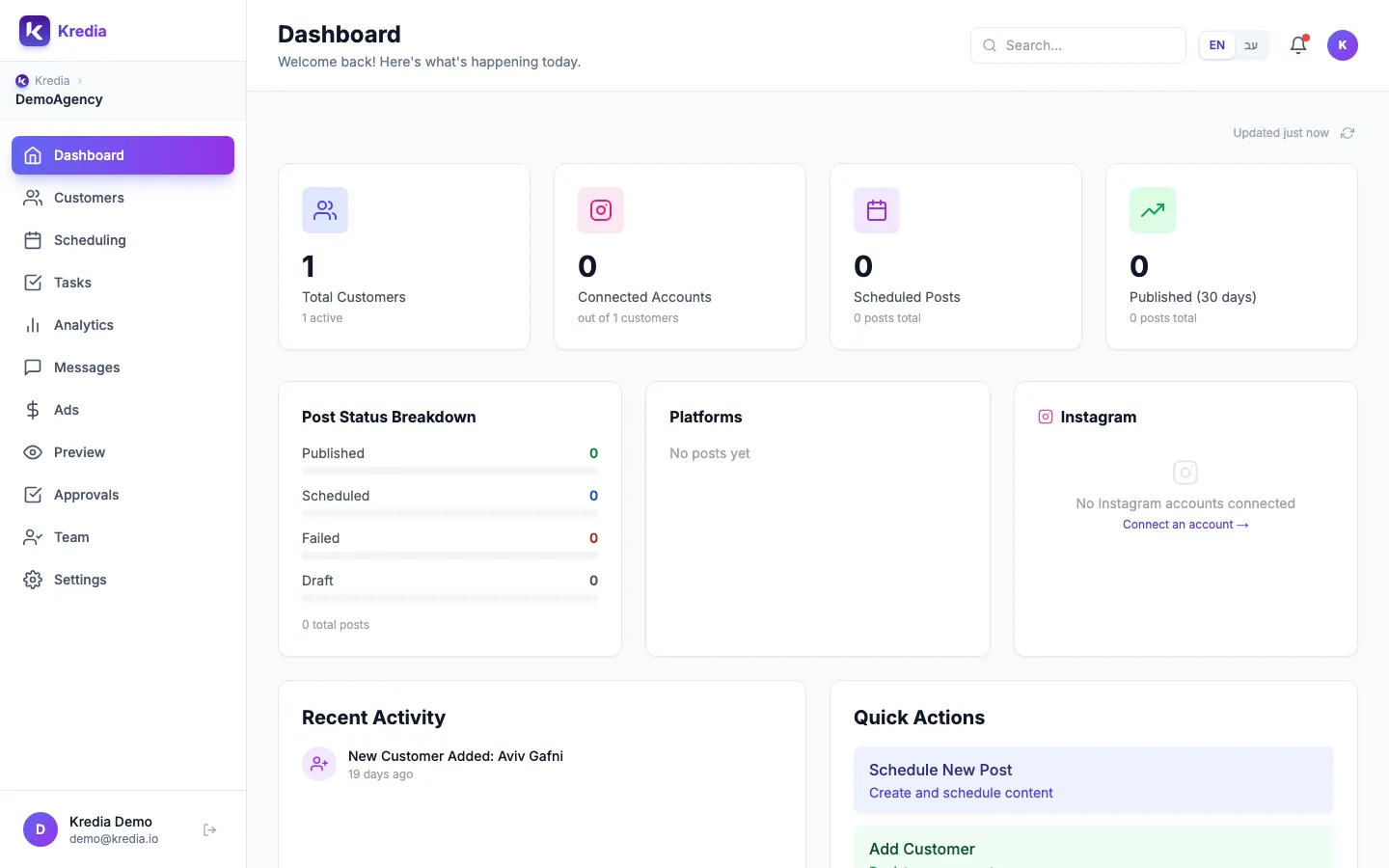
This is the short path from an empty agency to a post that's scheduled to go out. Each step links to its own guide if you need more detail. Plan on about 15 minutes, most of it spent signing in to the client's social accounts.
Before you start
- You have a Kredia account. Kredia is invite-only for now. You either joined from a team invitation or Kredia sent you a link to open your agency.
- You're the Owner or an Admin of the agency, so you can add clients and set their approval rules.
- You can sign in to the client's social accounts, or the client is available to connect them with you. For Instagram you need a Business or Creator account.
- Popups are allowed for kredia.io in your browser. Social networks ask you to sign in in a popup window.
Steps
- Create your agency. If you just signed up, choose Create agency and enter your agency's name. See How to create your agency.
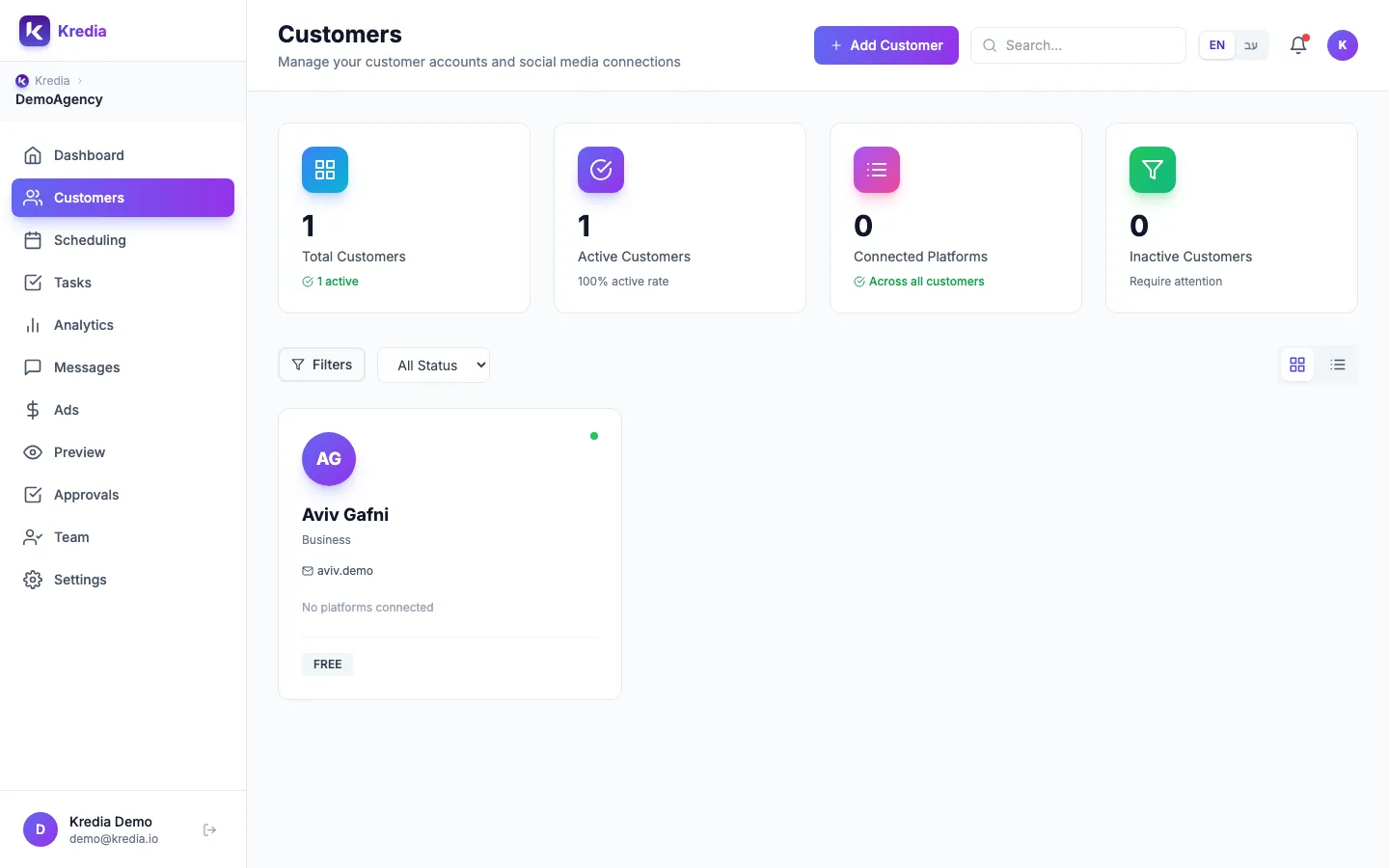
- Add your first client. Open Customers and click Add Customer. Enter the client's name and their real email address, then click Continue. See How to add a client.
- Decide on approvals. The wizard's Team & approvals step sets who must approve this client's posts. If you're not sure, click Skip for now: the default needs one approval from an Admin, and posts written by the Owner or an Admin go out without waiting.
- Connect the client's accounts. In the same wizard, connect Instagram, Facebook or TikTok, or skip them and connect later from the client's card with Connect Social Media. See How to connect Instagram and How to connect a Facebook Page.
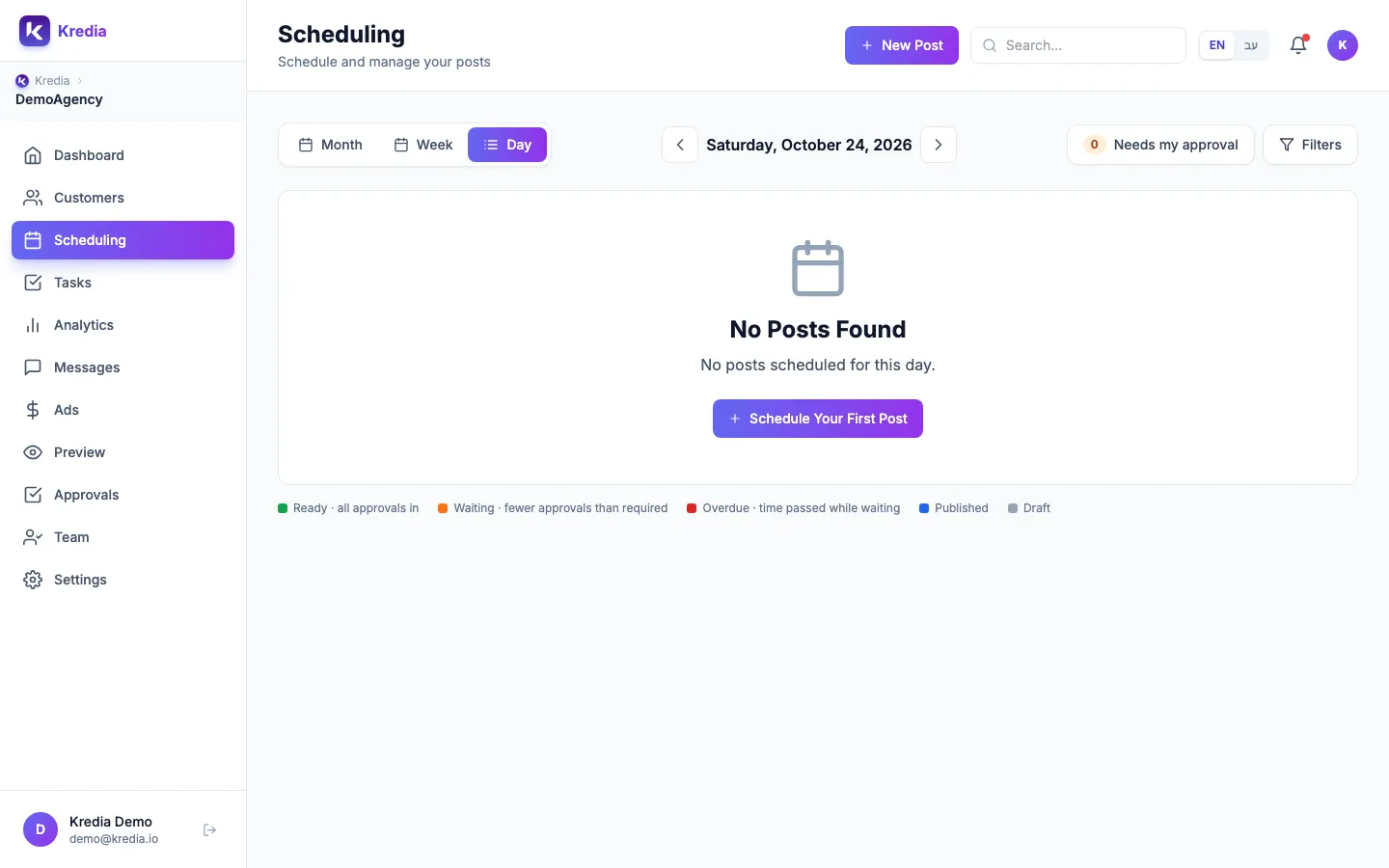
- Create the post. Go to Scheduling and click New Post (or Schedule New Post on the dashboard). Pick the client, one or more of their connected platforms, add your media and caption.
- Schedule it. Pick a date and time in the future and click Schedule Post. The post appears on the Scheduling calendar, and Kredia publishes it at that time.
What can go wrong
- You can't invite teammates yet. The Free plan includes 3 team seats, counting the Owner and any pending invitations. See Plans and team seats.
- The client never gets emails from Kredia. Client portal codes and connection links go to the email on the client's record. Use the client's real inbox, not your own.
- A teammate's post doesn't go out. If an Editor writes the post, it waits for an Admin or the Owner to approve it in Approvals. Nobody gets an email about it, so tell your approvers to check the Approvals badge in the sidebar.
- Nothing happens when you click Connect. Your browser blocked the popup. Allow popups for kredia.io and try again.
- The composer won't let you pick a time. The scheduled time must be in the future.
See also
Was this article helpful?