
Clients and connected accounts
How to add a client
Add a client on the Customers page, set who approves their posts, and connect their Instagram, Facebook and TikTok in one short wizard.
How-toWho it's for:OwnerAdminEditorInstagramFacebookTikTok
Checked on 24 October 2026Open in Kredia
A client is a business you manage social media for. Adding one takes a short wizard: the client's details, who approves their posts, and their Instagram, Facebook and TikTok accounts. Every step after the details can be skipped and finished later.
Before you start
- You're an Editor, Admin or Owner. Viewers don't see the Add Customer button.
- You have the client's real email address. Kredia sends the client portal sign-in codes and the account connection links to it, so use the client's own inbox, not yours.
- To connect accounts now, have the client's logins at hand, or have the client with you (on a call, for example). Popups must be allowed for kredia.io.
Add the client
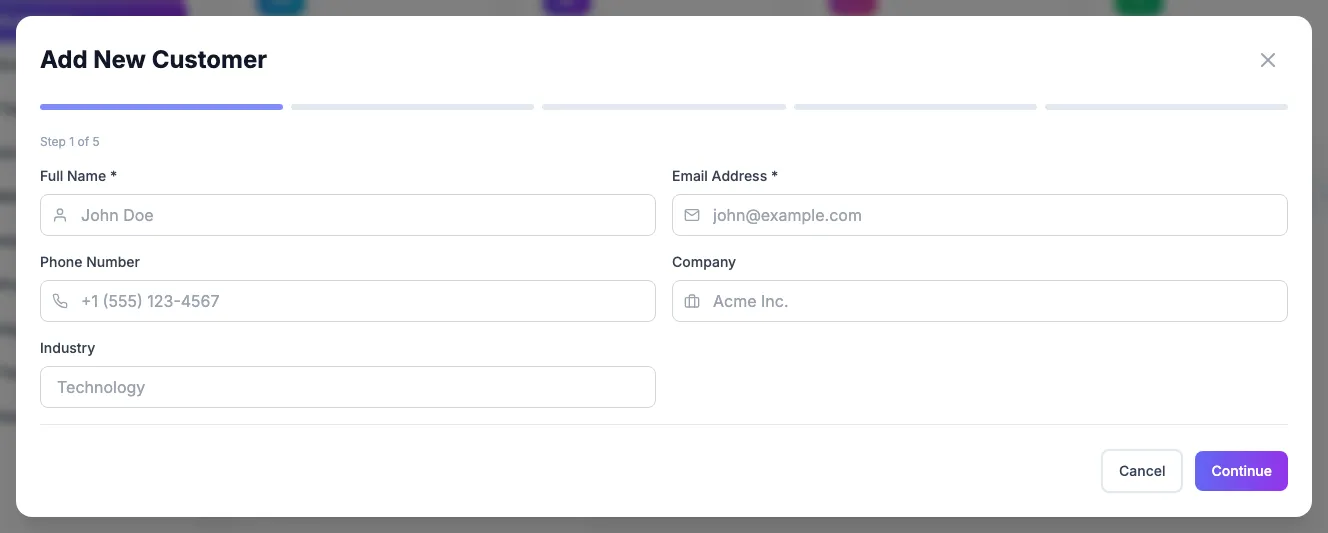
- Open Customers and click Add Customer.
- Enter the client's Full Name and Email Address (both required). Phone Number, Company and Industry are optional.
- Click Continue. The client is created at this point.
- On the Team & approvals step, choose who works on this client and how many approvals a post needs, then click Save and continue. Or click Skip for now to keep the default: one approval from any Admin.
- On the Instagram step, click Connect Instagram and sign in to the client's account in the popup, or click Skip. If the agency already connected that account for another client, you can pick it from Accounts already connected in your agency without signing in again.
- Do the same on the Facebook and TikTok steps.
- Click Finish. The client's card appears on the Customers page.
After you add the client
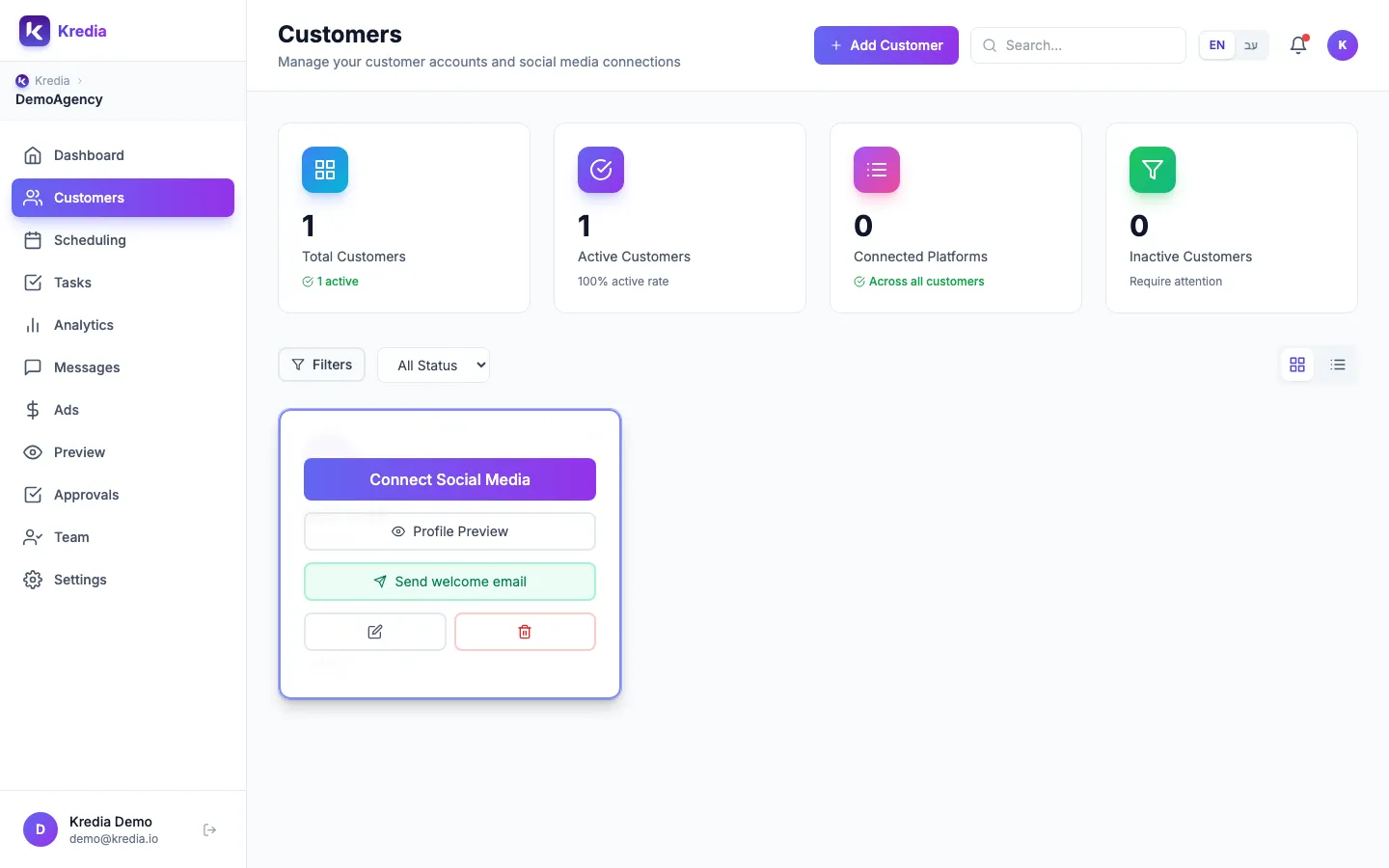
Point at the client's card on the Customers page to see its actions:
- Connect Social Media opens the client's connections, including YouTube, LinkedIn, Pinterest, Threads and Google Business.
- Profile Preview opens the client's profile page.
- Send welcome email sends the client a link to the client portal.
- The pencil icon edits the client's details. The trash icon deletes the client (Admins and the Owner).
What can go wrong
- "This email is already used by another customer". Each client needs a different email address.
- The client says they never got an email from Kredia. Check the email on the client's record (pencil icon) and correct it.
- Only three platforms in the wizard. The wizard covers Instagram, Facebook and TikTok. Connect other platforms from the client's card with Connect Social Media.
- Nothing happens when you click Connect Instagram. Your browser blocked the popup. Allow popups for kredia.io and try again.
See also
Was this article helpful?