
Approvals
How to set up approvals for a client
Choose who works on a client, how many approvals a post needs, who can skip approval, and what happens after approval.
How-toWho it's for:OwnerAdmin
Checked on 24 October 2026Open in Kredia
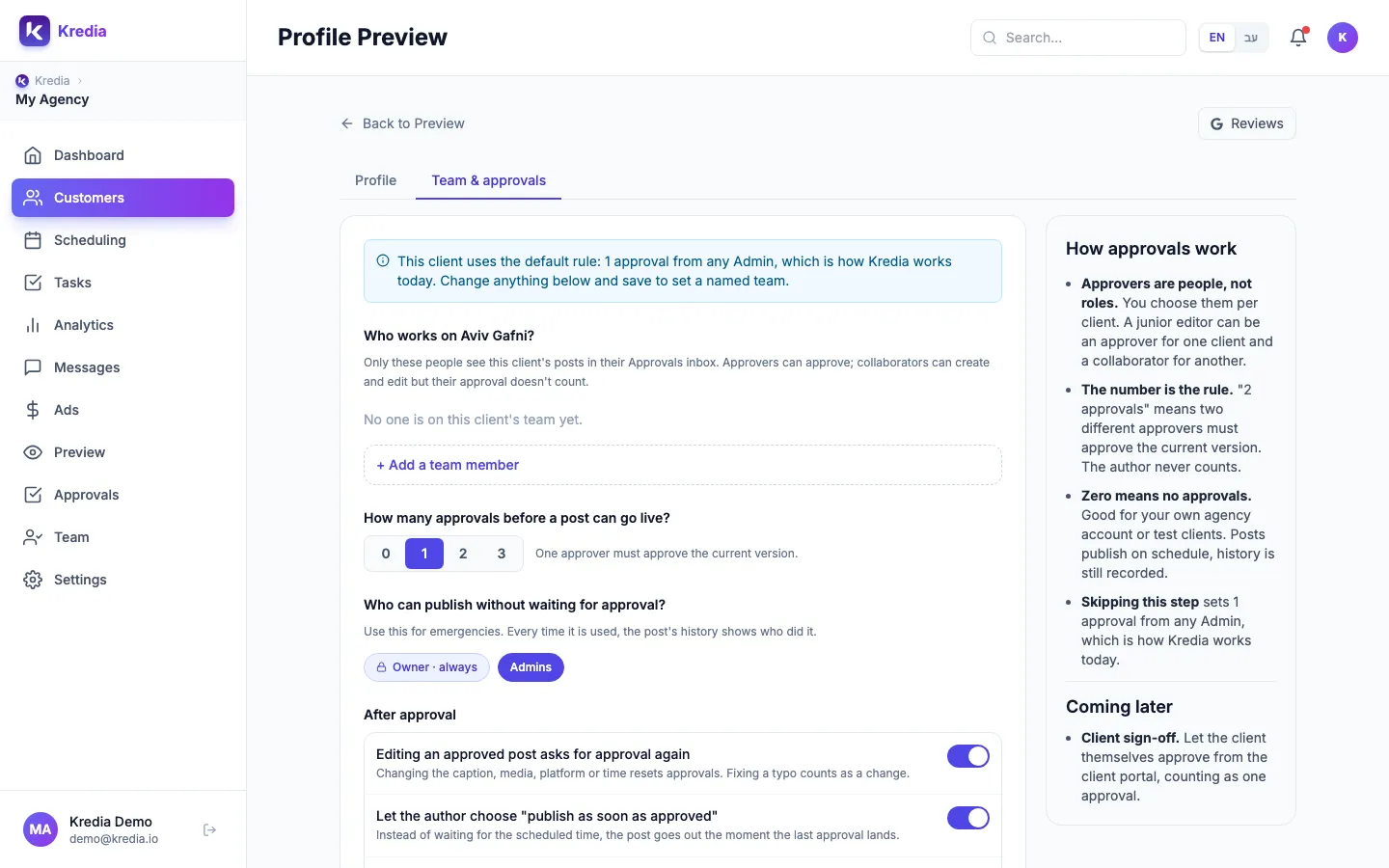
Each client has its own approval rule. Set it up once on the client's Team & approvals tab, and every new post for that client follows it.
Before you start
- You're an Owner or Admin. Others can see the settings but can't change them.
- The people you want are on your team. You can add Owners, Admins and Editors to a client. To add someone new, invite them on the Team page first; see How to invite teammates.
- You know the default. Until you save a rule, the client needs one approval from any Admin, and the Owner and Admins can publish without waiting.
Set the rule
- Open Customers, hover over the client's card and click Profile Preview.
- Open the Team & approvals tab.
- Under the Who works on …? heading, click + Add a team member, pick a person, and set them as Approver or Collaborator. Repeat for everyone who works on this client.
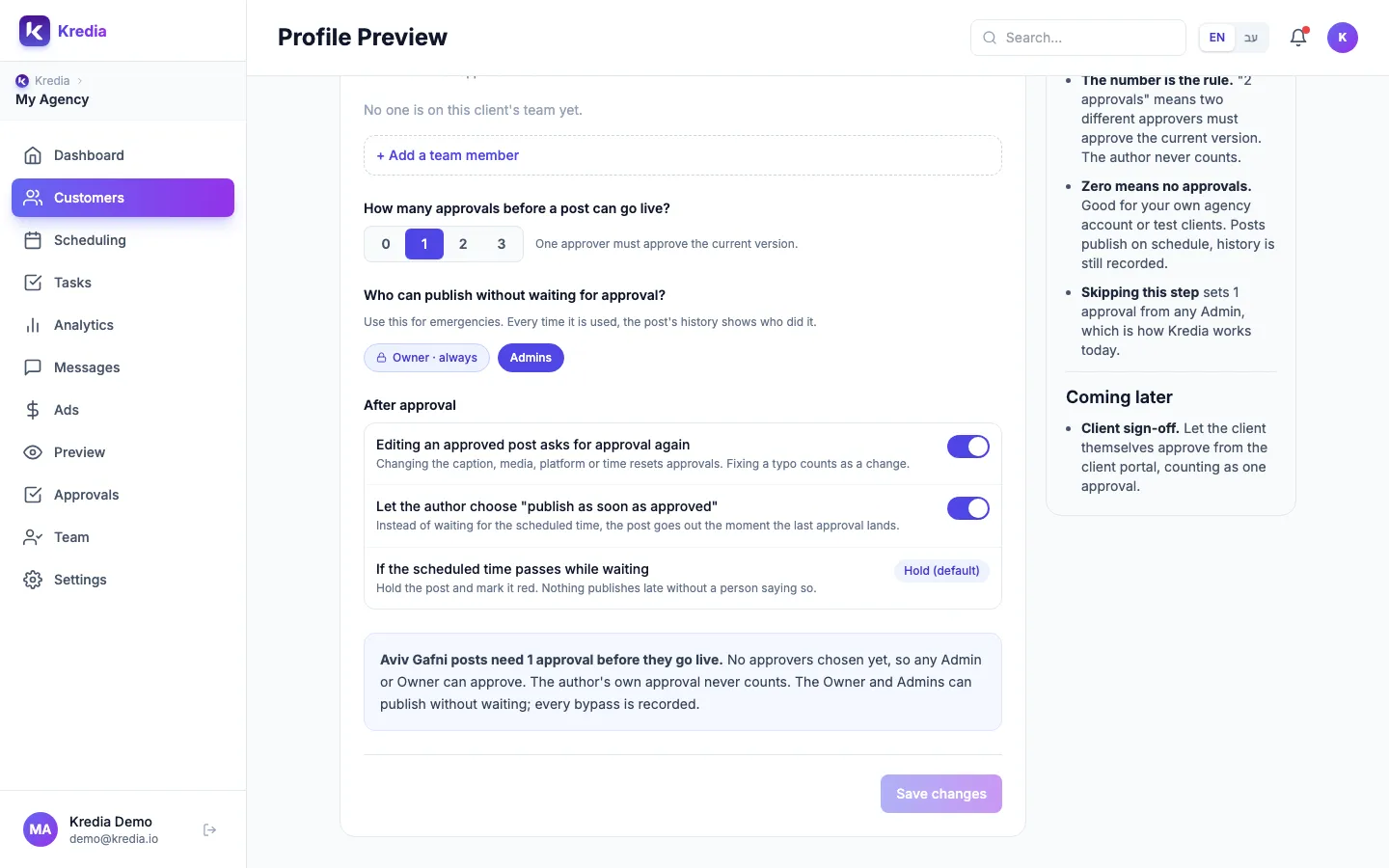
- Under How many approvals before a post can go live?, pick 0, 1, 2 or 3.
- Under Who can publish without waiting for approval?, choose who may skip approval. Owner · always can't be switched off. Switch Admins on or off. People on the client's team appear here too, so you can let specific people publish without waiting.
- Under After approval, decide whether Editing an approved post asks for approval again, and whether to Let the author choose "publish as soon as approved".
- Read the summary box. It describes the rule in one sentence and warns you if no post could ever go live.
- Click Save changes.
You can also set the rule while adding a new client: the Team & approvals step of the add-client wizard has the same settings. Skip for now keeps the default rule.
To go back to the default rule, click Reset to default and confirm.
What can go wrong
- "You have only 1 approver, so no post could ever go live." The number of approvals is higher than the number of approvers. Add approvers or lower the number, then save.
- The author's approval doesn't count. If you pick 1 approval and the only approver writes the post, someone else must approve it, or someone who can publish without waiting must publish it.
- "Only Owners and Admins can change these settings." Ask an Owner or Admin to make the change.
- Late approvals hold posts. If the scheduled time passes before the last approval, the post is held (Hold (default)). Someone has to click Post now or reschedule it.
- Clients can't be approvers. Client sign-off in the portal is listed under Coming later.
See also
Was this article helpful?