
Approvals
How approvals work
Each client has its own approval rule. Learn the default rule, who can approve, who can skip approval, and what happens when an approval comes late.
Approvals make sure the right people check a post before it goes out. Each client has its own approval rule, set by an Owner or Admin on the client's Team & approvals tab.
The default rule
Until someone changes it, every client uses the default rule:
- One approval from any Admin or the Owner is needed before a post can publish.
- The Owner and Admins can publish without waiting, so their own posts go straight through.
- Editors' posts wait in Approvals until an Admin or the Owner approves them.
What a client's rule can say
An Owner or Admin can set, for each client:
- Who works on the client. Each person is an Approver (their approval counts) or a Collaborator (they create and edit, but their approval doesn't count). Only these people see the client's posts in their Approvals inbox.
- How many approvals a post needs: 0, 1, 2 or 3. Zero means posts publish on schedule without approval; history is still kept.
- Who can publish without waiting for approval: the Owner always, Admins if switched on, and any named people. Every time someone does this, the post's history shows who.
- Whether editing an approved post asks for approval again. Changing the caption, media, platform or time then resets the approvals.
- Whether authors can choose "publish as soon as approved" instead of waiting for the scheduled time.
See How to set up approvals for a client.
Rules that always apply
- You can't approve your own post. The author's approval never counts.
- An approval is for one version. If the post is edited after you approve it, your approval can be reset and the post comes back to your inbox.
- Nothing publishes late on its own. If the scheduled time passes before the last approval, the post is held and marked red (Overdue). Someone has to click Post now or reschedule it. See An approved post didn't publish.
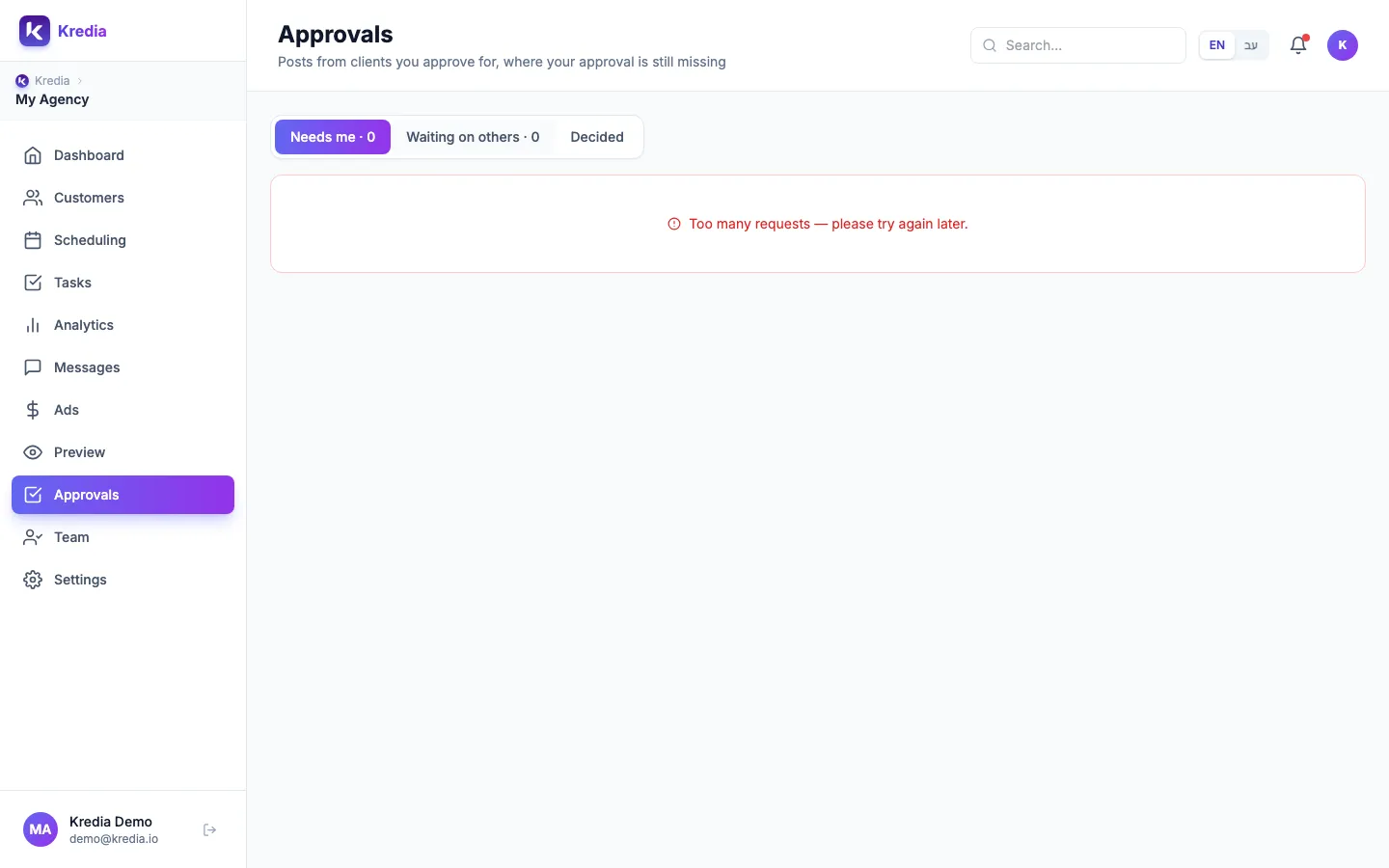
How approvers find out
Notifications are inside Kredia only: a badge on Approvals in the sidebar, the Needs my approval button on Scheduling, and live updates. Kredia doesn't send approval emails, and the mobile app has no push notifications yet. In the mobile app, approvers use the Approvals tab.
What clients can't do yet
Clients can't approve posts. The client portal is view-only today: it shows which accounts are connected and lets the client connect Instagram, Facebook or TikTok. Client sign-off is planned for later.
See also
Was this article helpful?