
Scheduling, calendar and campaigns
How to group posts into content campaigns
Create a content campaign for a client, add posts to it from the composer, follow its progress and filter the calendar by campaign.
A content campaign groups a client's organic posts around a launch, a season or a promotion, so you can track them in one place. Campaigns are mainly used in the Kredia mobile app's Campaigns tab; this article covers the website.
Content campaigns aren't ads. Paid campaigns live under Ads in the sidebar.
Before you start
- Open Campaigns by its address. The website has no sidebar link for Campaigns yet. Go to kredia.io/campaigns, or open a campaign from the mobile app.
- Each campaign belongs to one client.
- You're an Editor, Admin or Owner to create or change campaigns. Everyone on the team can view them.
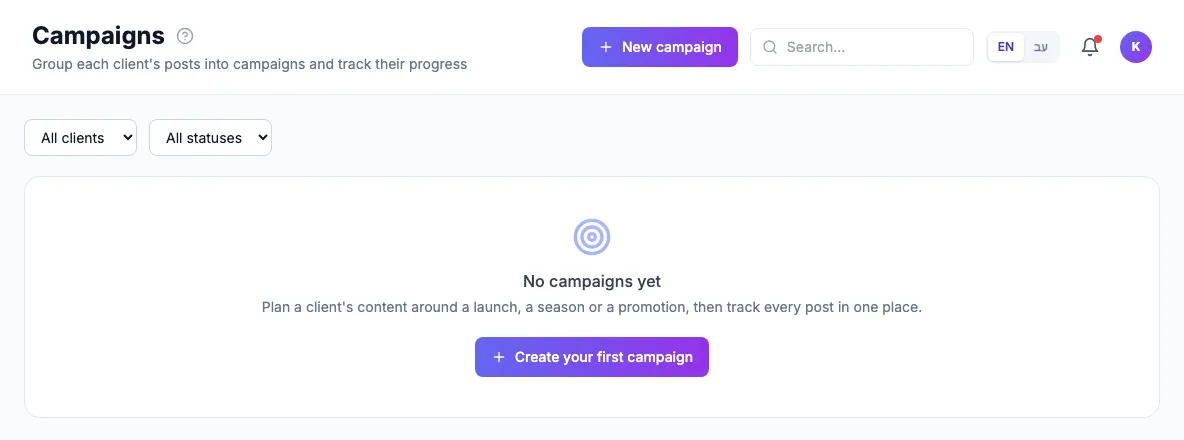
Create a campaign
- On the Campaigns page, click New campaign.
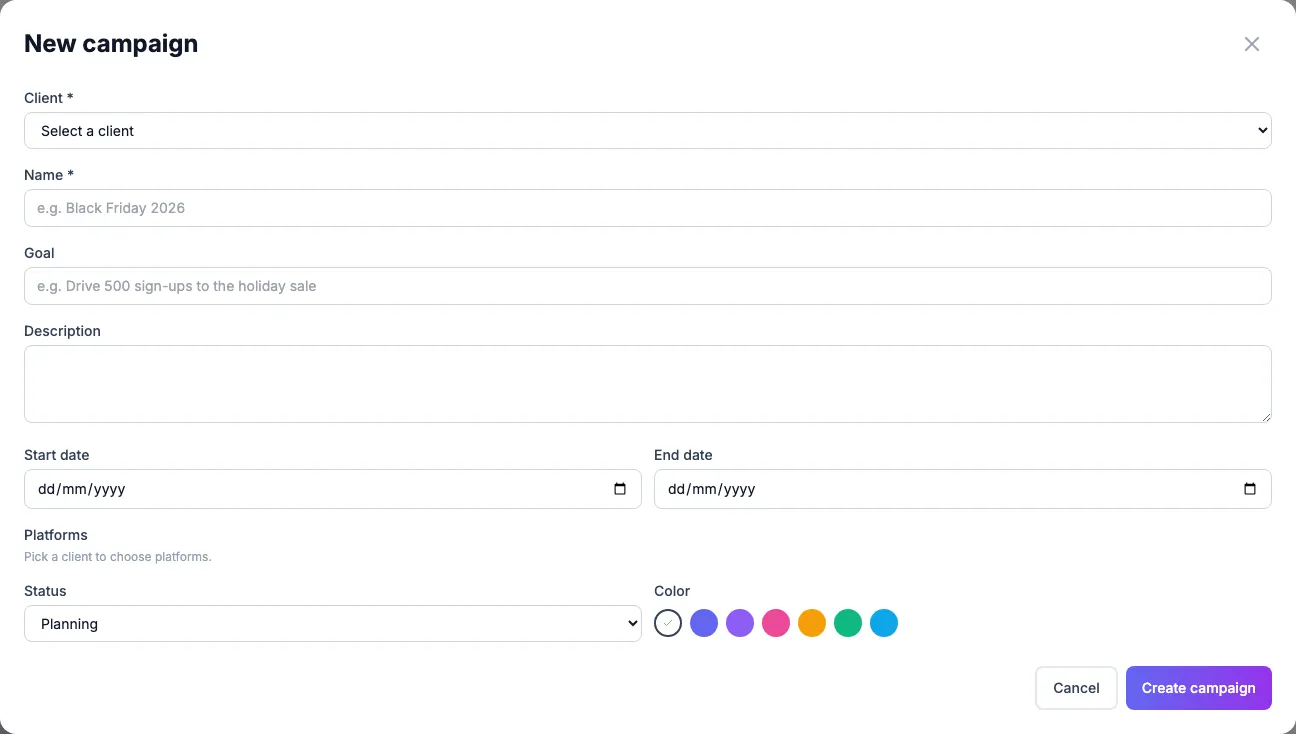
- Choose the Client and give the campaign a Name.
- Optionally add a Goal, a Description, a Start date and End date, the Platforms it covers, a Status (Planning, Active, Completed or Archived) and a Color.
- Click Create campaign.
Add posts to a campaign
- From the campaign: open it and click Schedule post. The composer opens with the campaign already selected.
- From the composer: pick the client, then choose the campaign in the Campaign field. The field appears only when the client has at least one campaign that isn't archived.
Follow a campaign
Open a campaign to see its dates, platforms and goal, how many of its posts are Draft, Scheduled, Published or Failed, and the share already published. The Posts table lists the campaign's posts (up to 100).
On Scheduling, click Filters and pick a Campaign to show only that campaign's posts.
Edit, archive or delete
On the campaign page, use Edit campaign, Archive (and Restore to bring it back), or Delete. Deleting a campaign keeps its posts: they stay on the calendar and are just no longer linked to a campaign.
See also
Was this article helpful?