Clients and connected accounts
How to connect, reconnect or disconnect a social account
Connect any of a client's social accounts from their card, keep the connection working, and disconnect it when you stop managing it.
Kredia publishes through each social network's official API, so each of a client's accounts has to be connected once. You sign in to the account on the network's own page, in a popup, and Kredia stores the access it needs. Kredia never sees the password.
Before you start
- The client exists in Kredia. If not, see How to add a client.
- You can sign in to the account, or the client is with you to sign in. For Instagram, Facebook and TikTok you can instead email the client a link to connect it themselves. See How to send a client a link to connect their own accounts.
- Popups are allowed for kredia.io in your browser.
Any member of the agency team can connect and disconnect accounts.
Connect an account
- Open Customers and point at the client's card.
- Click Connect Social Media. A window lists every platform with its status.
- On the platform's card, click Connect.
- A popup opens on the network's sign-in page. Sign in to the client's account and allow the permissions Kredia asks for.
- If Kredia asks you to choose, pick the account to use: the Facebook Page, or the LinkedIn profile or Company Page the client publishes as.
- The popup closes and the card turns green and shows Connected with the account's name.
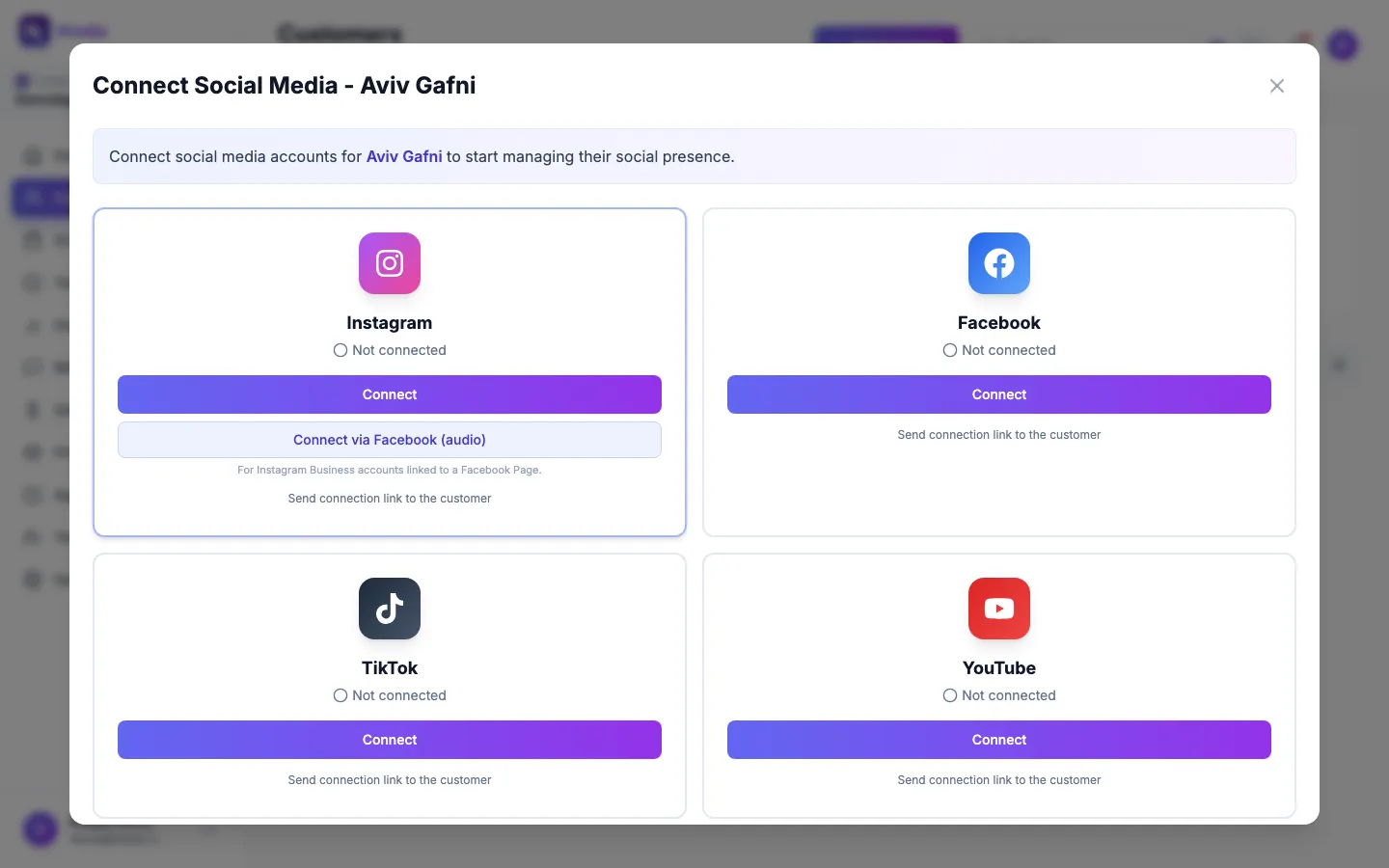
A connection finished somewhere else, for example by the client from an emailed link or by a teammate in another tab, shows up in this window without a refresh.
Know the connection states
- Connected (green): Kredia can publish to the account.
- Expired — reconnect (amber): the access stopped working. Kredia can't publish until someone reconnects. See Account shows "Expired, reconnect".
- Reconnect by and a date (LinkedIn only): LinkedIn access always ends after 60 days. Reconnect before that date.
- Coming soon: the platform isn't available for your agency yet.
Reconnect an account
- In Connect Social Media, click Reconnect on the platform's card.
- Sign in to the same account again in the popup.
Disconnect an account
- In Connect Social Media, click Disconnect on the platform's card.
- Confirm. Kredia deletes the access it stored for that account.
Posts that were already published stay on the platform. Scheduled posts for that account can't publish until it's connected again.
What can go wrong
- Nothing happens when you click Connect. Your browser blocked the popup. Allow popups for kredia.io and try again. If the sign-in window is hidden behind the page, use Bring login window to front.
- The account you need isn't offered. Sign in to the network with a profile that manages that account, for example an admin of the Facebook Page or a super admin of the LinkedIn Company Page.
- Pinterest or Google Business shows an error. These two depend on approval from Pinterest and Google, so they may not work for your agency yet.
See also
Was this article helpful?